


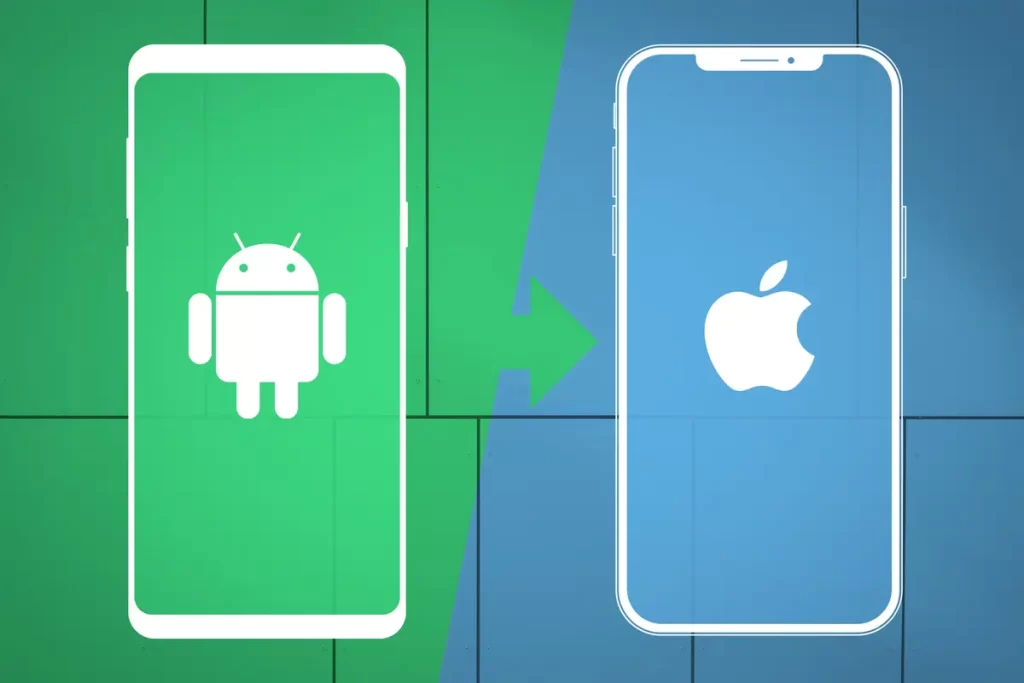
It might take some getting used to switching from Android to iPhone, particularly when it comes to the apparently straightforward process of shutting off your smartphone. Turning off your iPhone is a simple procedure if you know the steps to take, even though it can seem different from how you’re accustomed to doing it. Learn how to shut down several iPhone models, including the most recent iPhone 14 and iPhone 14 Pro series, in the following paragraphs.
How to Shut Down an iPhone (X, 11, 12, 13, or 14)
Users’ methods for turning off their smartphones have changed as a result of Apple’s release of the iPhone X. Unlike prior iPhone models, Siri is now activated by a long press of the side button, necessitating a somewhat different process to turn the device off. Here’s how to use Face ID on iPhones to do this:
1. While holding down either of the volume buttons, press and hold the side button.
2. The screen will display a “slide to power off” slider.
3. To turn off your iPhone, push the slider toward the right.
This easy procedure switches off your iPhone and is a typical fix for problems like AirDrop faults or other hiccups.
How to Shut Down an iPhone 6, 7, 8, or SE
The power-off procedure for iPhones with Touch ID and home buttons (iPhone SE, 6, 7, and 8) is still more familiar:
1. Retain the side button down until the power slider appears.
2. To shut off your iPhone, move the slider to the right.
How to Deactivate iPhone through Settings
Whether or not your iPhone has a home button, you may choose to turn it off from the settings app:
1. Launch the Settings app, then choose the General tab.
2. Locate the “Shut Down” option by scrolling down.
3. To switch off your iPhone, tap “Shut Down” and then move the power slider to the right.
How to Use Siri to Turn Off Your iPhone
Apple included a hands-free way to shut off your iPhone using Siri with iOS 15:
1. Say “Hey Siri, turn off my iPhone” or “Turn off my iPhone.”
2. A confirmation popup will show up; respond “Yes” to it or hit the “Power Off” button.