


























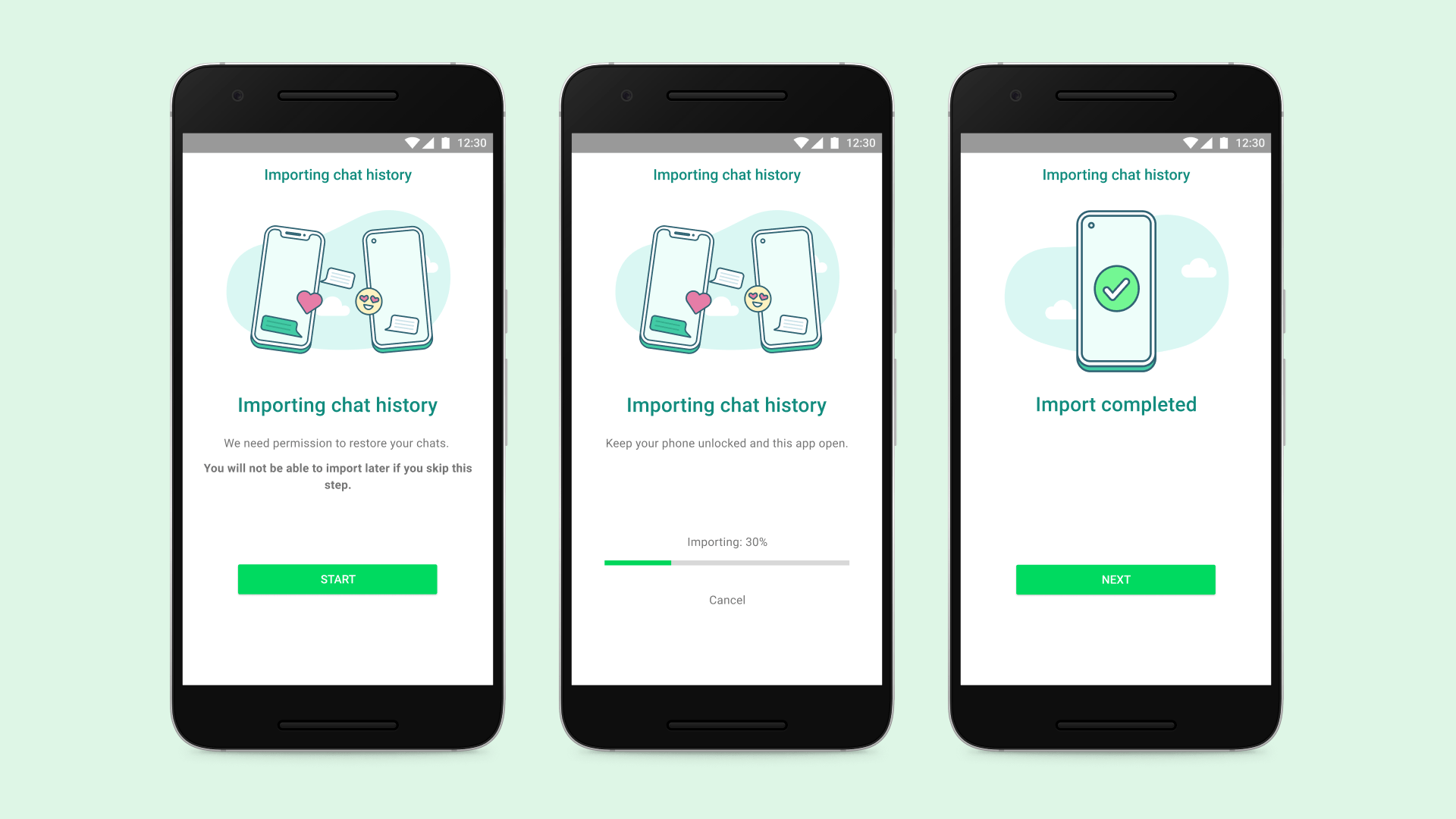
For users wishing to move platforms, transferring WhatsApp conversation history across Android and iOS devices has always been difficult. The usage of QR codes in the most recent feature upgrade, however, has greatly simplified this procedure. In this post, we go into detail on how to use QR codes to move your WhatsApp conversation history across Android and iOS devices. This manual guarantees a seamless changeover without losing any significant communications, pictures, or files. The difficulty of transferring conversation history has often been a challenge for WhatsApp users when switching between Android and iOS devices. Fortunately, this procedure has been simplified and made more convenient by the app’s recent incorporation of QR codes. This tutorial will show you how to migrate your WhatsApp chat history using QR codes from an Android smartphone to an iOS device (or vice versa), protecting your important conversations and material throughout the process.
How to Transfer WhatsApp Chat History Using a QR Code, Step by Step
Update WhatsApp first Make sure WhatsApp is installed on your Android and iOS devices in the most recent version. To access new features and improvements, such as the QR code migration tool, regular upgrades are essential.
Step 2: Back up your chat history. Open WhatsApp on your Android smartphone and navigate to “Settings.” Go to “Chats” and then “Chat backup” from there. Create a comprehensive backup of your conversation history in Google Drive, including all messages, pictures, and files. Ensure the backup is current before continuing.
Setting up WhatsApp on iOS in Step 3 Launch WhatsApp after installing it on your iOS device. Make sure to complete the basic setup steps, which include validating your phone number. At this point, WhatsApp will automatically find the Google Drive conversation backup.
Step 4: QR Code Migration: WhatsApp will ask you to recover your conversation history after verifying your phone number. Choose the “Transfer your chat history” option rather than “Restore it directly.” A unique QR code will be created by WhatsApp throughout the transfer process.
Step 5: Scanned the QR Code: Now open WhatsApp on your Android smartphone. Go to “Settings,” then “Chats,” and then choose “Move chats to iOS.” The QR code shown on your iOS device may be scanned using the device’s camera. This creates a safe connection for data flow between the two devices.
Step 6: Starting the Transfer: Your Android smartphone will start the procedure of transferring the conversation history to the iOS device after scanning the QR code. Depending on the amount of data being sent, this can take a while. Make sure both devices have enough battery life and are linked to a reliable Wi-Fi network.
Step 7: Completion and Verification: After the transfer is finished, all of the chats, pictures, and attachments that were on your Android smartphone will appear on your iOS device. Verify again to be sure all of your crucial data has been correctly moved.
Advice for a Smooth Transfer:
Stable Wi-Fi Connection: To avoid interruptions during the data transfer process, make sure both devices are linked to a dependable Wi-Fi network.
Battery Levels: Ensure that both devices have enough power to carry out the transfer without any hiccups.
Be patient: If you have a lengthy conversation history, the transfer procedure may take some time. Keep calm and refrain from interfering with the procedure.
Verifying the backup: Before beginning the transfer, make sure the backup on your Android smartphone is current. By doing this, you can be sure that the transfer includes all of your most recent discussions.
Users’ ability to transition between Android and iOS devices has been revolutionized by WhatsApp’s incorporation of QR codes for conversation history transfer. During the shift, no important interactions or media are missed thanks to the smooth and effective procedure. Users may confidently migrate their WhatsApp conversation history using QR codes by following the step-by-step instructions in this article and heeding the advised advice, making device transitions a stress-free experience. Keeping up with WhatsApp’s most recent changes is crucial for a seamless transfer process since this functionality is always changing.